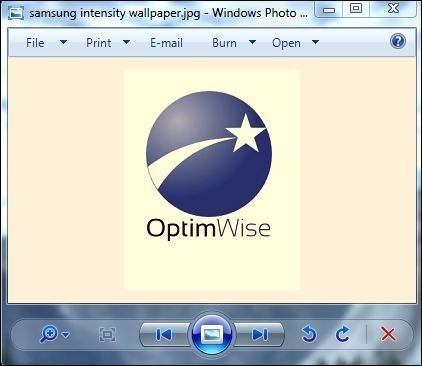
 When displaying and viewing photos in Windows Photo Gallery, my Samsung Syncmaster display has a strange problem in which the images will be shown with a orange or yellowish tinge in photos’ background, affecting the display natural color of pictures to become something like Sepia effect.
The symptom is likely to occur after update of incompatible monitor driver, especially on Samsung LCD flat panel monitor driver update via Windows Update. The cause for the error is the usage of incorrect color profile for the monitor in Color Management setting.
To solve the problem and restore normal colors in Windows Photo Gallery, you can try the resolution below:
- Start -> Color Management
- You will need to select (tick) Use my settings for this device to be able to remove, change or set new color profiles.
- Try to change the default color profile for your system’s monitor to sRGB IEC61966-2.1, simply by clicking on Add, and then select sRGB IEC61966-2.1 from the list of profiles installed on system. After adding, click Set as Default Profile button.
- Exit from all dialogs and reboot your computer, and the color problem on Windows Photo Gallery is fixed.
Add new comment